How to search and filter Azure Service Bus messages
Published July 21, 2026
To search Azure Service Bus messages with QueueExplorer, open the queue, topic subscription, or subqueue, load a controlled batch with Peek, and filter the displayed rows by body, Message ID, Correlation ID, Subject, Session ID, standard fields, or application properties. QueueExplorer Professional can also extract business values from JSON, XML, or text bodies into filterable columns.
The important limitation is scope: Azure Service Bus does not provide a server-side full-text query over all messages already stored in a queue or subscription. A desktop tool or SDK must browse messages first, so a filter can match only the messages loaded into the current view.
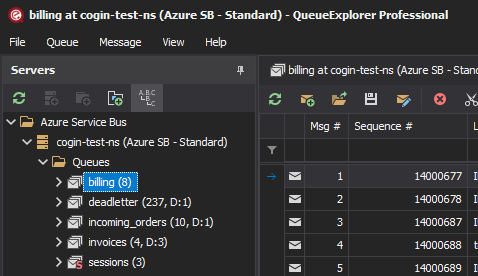
1. Open the correct queue, subscription, or message state
- Connect QueueExplorer using Microsoft Entra ID, a suitably scoped SAS connection string, or the Azure Service Bus Emulator.
- Choose the queue or the topic subscription that actually stores the messages.
- Open its active, Deadletter, Transfer, Transfer Deadletter, Deferred, or Scheduled view as required.
- Set a practical browse limit and load the first batch.
Search each relevant location separately. An active-queue search does not include its DLQ. A topic itself does not retain a browsable message backlog, so inspect the applicable subscriptions.
Not every message sent to a topic is stored in every subscription. Azure Service Bus evaluates the rules configured for each subscription when the message is published, and only subscriptions with a matching rule receive a copy. If a message matched no subscription, there is no stored copy to find later. Changing a rule does not retroactively add earlier topic messages to that subscription.
For a session-enabled queue or subscription, you may also need to select the Session ID that contains the message. Session support is an entity configuration, not another message location or state.
Free trial for Windows, macOS, and Linux
2. Display the fields that identify the message
Add the useful standard and application properties as grid columns before filtering. Common investigation keys include:
- Message ID, Correlation ID, Subject, Content Type, To, and Reply To;
- Sequence Number, Enqueued Time, Expires At, Delivery Count, and message state;
- Session ID and Partition Key when sessions or partitioning are used;
- dead-letter reason and description when searching a DLQ; and
- application properties such as tenant, order number, event type, region, or schema version.
Prefer a stable business identifier when one exists. Message ID is application-controlled and may not be unique unless the sender or duplicate-detection configuration enforces that rule. Sequence Number is broker-assigned and identifies the stored copy within its entity, but it changes when a message is resubmitted elsewhere.
3. Sort and filter the loaded messages
- Click a column header to sort the current message view.
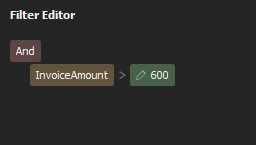
- Open the filter editor for the field you want to constrain.
- Choose an operator appropriate for the value: equality for IDs, comparison for numbers or times, or text matching for labels and strings.
- Add another condition when one field is not selective enough.
- Inspect the body and complete property set before acting on any match.
For example, combine a customer or tenant property with a time range instead of searching only for a common status string. Sorting and filtering change the desktop view only; they do not reorder messages in Service Bus or alter what a receiver obtains next.
4. Search business data inside JSON, XML, or text bodies
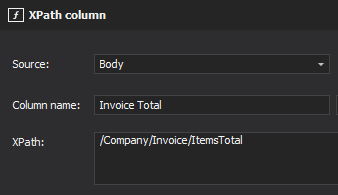
A body-text search is useful for a quick diagnostic, but structured extraction is safer when values have types or the same text can appear in several fields. QueueExplorer Professional can extract values using JSON expressions, XPath, or regular expressions and display the result as a custom column.
- Open a representative message and confirm its body format and encoding.
- Create an extraction for the business field, such as order ID, invoice total, customer, or event type.
- Display the extracted value as a column.
- Filter or sort that column like other message data.
- Check messages where extraction failed; a failure can reveal mixed schemas, malformed bodies, compression, or encryption.
How to search a large Azure Service Bus queue
Do not select Show all automatically on a large production backlog. It can use substantial client memory, take a long time, and still represent a moving view while publishers, consumers, expiration, and forwarding change the entity.
- Narrow the entity and message state first.
- Use known time, Session ID, or business-key boundaries; an SDK scan can also start Peek from a known Sequence Number.
- Browse in recorded batches and keep the last Sequence Number as the next starting boundary.
- Pause competing consumers if an exact reviewed selection will be edited, moved, or deleted.
- For repeatable high-volume searches, build a current Azure Service Bus SDK utility or maintain an external diagnostic index.
Peek is not a transactionally consistent snapshot. A message seen in one batch may be completed by a consumer before you act, and a newly enqueued message may appear after the browse has started.
Message search filters versus topic subscription filters
These two kinds of filter solve different problems:
- QueueExplorer filters narrow a diagnostic view of messages that are already stored and loaded.
- Azure Service Bus subscription rules decide which future topic messages are copied into a subscription.
Subscription rules evaluate message properties when the broker routes a message. They do not retroactively search or reorganize a subscription backlog, and Microsoft documents that they cannot evaluate message bodies. Use topic filters for routing, not as a replacement for inspecting stored data.
What to do after finding the message
- Save a full-message backup before making a destructive change.
- Confirm the namespace, entity, subqueue, body, IDs, session, and application properties.
- Select only the reviewed matches rather than applying an operation to the full loaded batch.
- Use the dedicated workflow to move, delete, repair, or resubmit the selection.
- Refresh and verify both the source and destination after the operation.
Frequently asked questions
Can Azure Service Bus search a queue by Message ID?
Azure Service Bus does not expose an indexed server-side query for stored Message IDs. Browse messages with Peek, then filter the loaded Message ID column in QueueExplorer or compare it in an SDK scan.
Can I search all Azure Service Bus message bodies?
You can search bodies that a tool or SDK has loaded. Searching an entire backlog requires progressively peeking through it because Service Bus does not maintain a full-text body index.
Does filtering remove or lock messages?
No. QueueExplorer filters the results returned by Peek, which is non-destructive. A later receive-based action can change the message, so inspect the final selection before acting.
Why did my filter not find a message that the count says exists?
The message may be outside the loaded batch, in another subscription or message state, locked or completed by a consumer, or encoded differently than expected. Expand the browse range carefully and check the DLQ, deferred, scheduled, transfer, and session views as appropriate.
Related Azure Service Bus guides
- Browse and inspect Azure Service Bus messages
- Repair and resubmit Azure Service Bus DLQ messages
- Move selected Azure Service Bus messages
QueueExplorer: a better way to inspect and manage Azure Service Bus
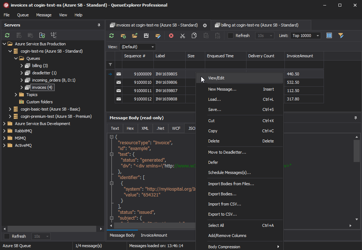
See what is happening in Azure Service Bus and resolve message problems without writing one-off tools. Browse queues and topic subscriptions, inspect message contents, and manage your Azure Service Bus environment from one desktop application. Try it free on Windows, macOS, or Linux.