How to browse and inspect Azure Service Bus messages
Updated July 21, 2026
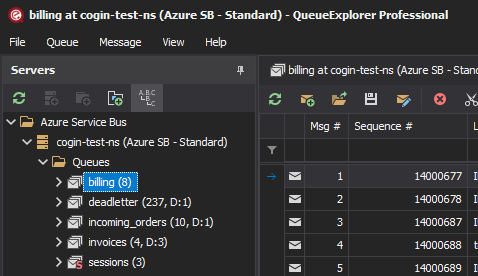
To browse Azure Service Bus messages, connect QueueExplorer, expand the namespace, and select a queue or topic subscription. Messages load progressively into a grid where you can inspect bodies and properties, choose columns, sort the current view, and filter the messages already loaded.
QueueExplorer also exposes dead-letter, transfer, deferred, and scheduled messages. For session-enabled queues or subscriptions, it can group messages by Session ID. These locations and states need different handling, so first identify where the message currently lives.
1. Connect QueueExplorer to Azure Service Bus
Use Microsoft Entra ID login
QueueExplorer supports Microsoft Entra ID login directly. Enter the namespace and, when needed, the tenant ID, then choose Login. Authentication takes place in Microsoft's login dialogs outside QueueExplorer. QueueExplorer does not receive the user's password; it receives a token for the Service Bus operations allowed by that user's Azure roles.
- Download QueueExplorer for Windows, macOS, or Linux.
- Create an Azure Service Bus connection and select Microsoft Entra ID login.
- Enter the namespace and optionally the tenant ID, then choose Login.
- Complete Microsoft's sign-in and consent flow with the intended Azure account.
- Open the connection and select the queue or topic subscription to browse.
Entra ID separates topology and message permissions. For a full namespace view, assign the Reader role at the namespace so QueueExplorer can enumerate queues, topics, and subscriptions. Reader alone does not grant message access. Add Azure Service Bus Data Receiver for browsing and receiving, Data Sender for sending, or Data Owner when broader Service Bus data access is required. Data roles can be scoped to the namespace or to individual queues and topics.
Data Receiver is not Peek-only: it also permits receiving and removing messages. Use QueueExplorer's browsing workflow when the investigation must remain non-destructive.
Use a Shared Access Policy connection string
For a namespace-level SAS connection, QueueExplorer requires a policy with Manage access to discover queues, topics, and subscriptions. If full namespace enumeration is unnecessary, QueueExplorer can instead connect with a connection string scoped to one queue or topic; Listen permission is enough for read-only message browsing on that entity. Add only the further rights required for sending or management operations.
Azure Service Bus does not provide a separate Peek-only SAS right. Listen also permits receive and settlement operations, so use QueueExplorer's browsing workflow when the investigation must remain non-destructive.
Avoid using RootManageSharedAccessKey when a narrower namespace or entity policy will do. Store
connection strings as secrets and rotate them if they are exposed.
Connect to the Azure Service Bus Emulator
QueueExplorer can connect directly to the Azure Service Bus Emulator. Choose the emulator connection type and enter its host name. Change the AMQP and administration ports when the emulator does not use the defaults, such as when Aspire assigns dynamic host ports.
See the complete QueueExplorer Azure Service Bus connection guide for Entra ID, SAS, single-entity, tenant, role, emulator, filtering, and transport details. In every case, network rules must allow the computer running QueueExplorer to reach the namespace or emulator.
2. Select a queue or topic subscription
Expand Queues and click the required queue, or expand a topic and choose one of its subscriptions. A topic is a publishing endpoint; messages are normally consumed and inspected from the subscriptions that received a copy.
QueueExplorer begins loading messages progressively. Set a practical limit for a large production entity instead of loading the full backlog. The displayed count is a working view, not a transactionally consistent snapshot: publishers, consumers, expiration, forwarding, and dead-lettering can change the entity while you inspect it.
Free trial for Windows, macOS, and Linux
3. Inspect message bodies and properties
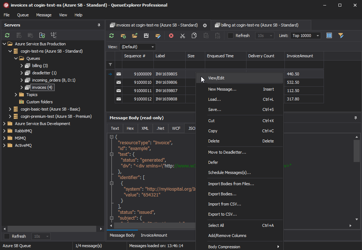
Select a row to see the message body and broker or application properties. Choose the viewer that matches the payload:
- formatted JSON or XML;
- text with UTF-8, UTF-16, and other encodings;
- hexadecimal data for binary or unknown payloads; or
- WCF message content.
Add fields such as Sequence Number, Message ID, Correlation ID, Subject, Session ID, Delivery Count, Enqueued Time, Expires At, Content Type, and application properties as grid columns. The broker-assigned sequence number identifies the stored message within an entity; an application-supplied Message ID is useful for correlation but is not a server-side search index.
4. Sort and filter the loaded messages
Click a column heading to sort the current view, then filter by body text, IDs, standard properties, or custom application properties. Sorting and filtering change only what QueueExplorer displays; they do not reorder the queue or alter the subscription.
Azure Service Bus does not provide a database-style full-text query over every message already stored in a queue or subscription. A filter can therefore find only messages QueueExplorer has loaded. Increase the load limit carefully when the first batch does not contain the target.
QueueExplorer Professional can extract values from JSON, XML, or text bodies with JSON expressions, XPath, or regular expressions. The extracted values become sortable and filterable columns, which is useful for locating an order number, tenant, event type, or other business key.
For a complete workflow and the limitations of scanning large entities, read how to search and filter Azure Service Bus messages.
Browse active, dead-letter, deferred, and scheduled messages
| Message location or state | How it behaves | Where to inspect it |
|---|---|---|
| Active | Available for a normal receiver | The queue or topic subscription |
| Dead-lettered | Removed from normal delivery after failure, expiration, or explicit dead-lettering | The entity's Deadletter subqueue |
| Deferred | Still stored in the main entity but retrievable for processing only by sequence number | QueueExplorer's Deferred view |
| Scheduled | Not active until its scheduled enqueue time | QueueExplorer's Scheduled view; scheduled topic messages remain on the topic before enqueue time |
Read the dedicated guides for deferred messages, scheduled messages before changing those states.
Sessions are different: session support is configured on the queue or subscription and is not another message location or state. See the separate guide to inspecting and managing Azure Service Bus sessions.
Azure Service Bus Peek versus receive modes
Peek is intended for diagnostics. It returns message content without acquiring a lock and without allowing the client to complete, abandon, defer, dead-letter, or renew that peeked copy. Peek can include active, locked, deferred, scheduled, and not-yet-cleaned expired messages. To inspect dead-letter messages, browse the DLQ itself.
Receive modes are for processing:
- Peek-Lock temporarily locks a delivery. The message is removed only when the receiver completes it; abandon or lock expiry makes it available again and can increase Delivery Count.
- Receive-and-Delete settles the message as it is transferred. If the client or network fails after that point, the message can be lost.
See Microsoft's explanation of locks and settlement for the protocol details.
A safer production browsing workflow
- Confirm the Azure tenant, subscription, namespace, and entity name before opening messages.
- Use a read-only or narrowly scoped credential for diagnosis whenever possible.
- Load the smallest useful batch and avoid exposing secrets or personal data in screenshots and exports.
- Use stable business identifiers together with Sequence Number and Message ID; do not assume Message ID is unique unless your application enforces it.
- Pause competing consumers before selected-message changes when the exact selection matters.
- Save or copy important messages before deleting, moving, editing, rescheduling, or replaying them.
- Refresh after the investigation and check active, dead-letter, and transfer counts for unexpected changes.
Frequently asked questions
Does browsing remove Azure Service Bus messages?
No. Azure Service Bus Peek is non-destructive. A later receive-based operation can remove or change a message, so keep the investigation separate from delete, move, defer, and dead-letter actions.
Can I search an Azure Service Bus queue by Message ID?
You can filter Message ID among messages loaded into QueueExplorer, but Azure Service Bus does not maintain a server-side query index over queued message IDs or bodies.
Can I browse a topic directly?
Applications normally inspect messages in a topic's subscriptions because each subscription stores its own matching copy. Scheduled messages remain at the topic until their scheduled time and require topic-level browsing to discover before then.
Why can Peek show an expired or locked message?
Peek is a diagnostic view of the broker log. Cleanup of expired messages is asynchronous, and a peeked snapshot does not expose a live receiver lock. A message returned by Peek may therefore no longer be available to a normal receiver.
Related Azure Service Bus tasks
- Search and filter messages by properties or body data
- Repair and resubmit DLQ messages
- Delete specific messages
- Move selected messages
- Back up and restore messages
QueueExplorer: a better way to inspect and manage Azure Service Bus
See what is happening in Azure Service Bus and resolve message problems without writing one-off tools. Browse queues and topic subscriptions, inspect message contents, and manage your Azure Service Bus environment from one desktop application. Try it free on Windows, macOS, or Linux.