How to move selected Azure Service Bus messages
Updated July 21, 2026
To move selected Azure Service Bus messages, open the source queue, subscription, or dead-letter subqueue in QueueExplorer, filter and inspect the messages, then use Cut and Paste or drag them onto the destination queue or topic. QueueExplorer sends copies to the destination and removes the source messages as part of the requested workflow.
Treat a manual move as a data migration, not as renaming a file. The destination receives a new broker message: Sequence Number, Enqueued Time, Delivery Count, lock data, and other service-owned fields will differ even when the body and application properties are preserved.
Before moving Azure Service Bus messages
- Confirm both endpoints. Record the source and destination tenant, namespace, entity type, entity name, session requirement, and duplicate-detection configuration.
- Check permissions. With Microsoft Entra ID, use Azure Service Bus Data Receiver for the source and Data Sender for the destination. With SAS, the corresponding rights are Listen and Send. Moving topology or changing rules requires broader management permission.
- Stop consumers when possible. A displayed message can be completed by another receiver before the move begins.
- Check destination capacity. Verify message size, entity quota, TTL, session, partition key, and application expectations.
- Back up first. Save the full selection to QueueExplorer's
.mqformat when a failed or partial move must be recoverable.
1. Find and select the messages
- Open the source queue, topic subscription, or subqueue.
- Load a practical batch rather than the entire production backlog.
- Filter by body, Message ID, Correlation ID, Subject, Session ID, or application properties.
- Inspect the payload and metadata for every candidate.
- Select one message or a reviewed group.
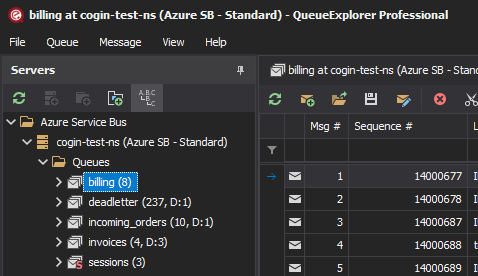
Filtering applies to messages QueueExplorer has loaded; Azure Service Bus does not provide a server-side full-text query across stored message bodies. QueueExplorer Professional can extract business fields from JSON, XML, or text so they can be filtered as columns.
Free trial for Windows, macOS, and Linux
2. Move the selection
Cut and paste
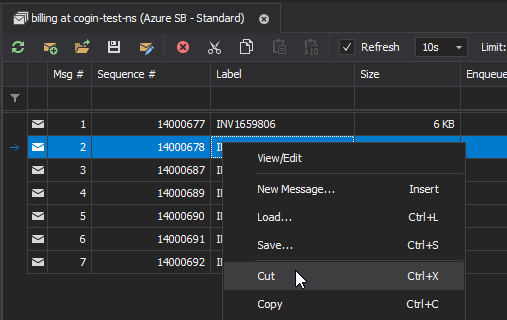
- Right-click the selection and choose Cut, or press Ctrl+X/Cmd+X.
- Open the destination queue or select the destination topic.
- Choose Paste and review any session or message options.
- Wait for the operation to finish before refreshing or closing either connection.
Drag and drop
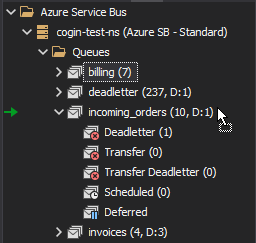
Drag the selected rows onto a destination queue or topic in the object tree. Confirm the highlighted target before releasing the pointer; similarly named entities in different namespaces are easy to confuse.
Use a backup file for a controlled two-phase move
- Save the selected messages to a
.mqfile. - Load that file into the destination queue or topic.
- Verify the destination count, bodies, IDs, application properties, sessions, and consumer behavior.
- Return to the source and delete only the original selection.
This is slower, but the intermediate file provides a recovery point and a clear verification boundary. It is particularly useful for cross-namespace or cross-environment moves.
3. Verify both sides
- Refresh the destination and filter by stable business keys or Message ID.
- Compare the body, content type, correlation data, application properties, TTL, and Session ID.
- Expect broker-owned fields such as Sequence Number and Enqueued Time to change.
- Refresh the source and confirm that only the intended originals are gone.
- Check source and destination dead-letter or transfer dead-letter subqueues.
- Resume one consumer instance first and watch for processing failures or duplicates.
What changes when a message is moved?
| Data | Expected result |
|---|---|
| Body and application properties | Can be copied to the new message |
| Message ID and correlation fields | Can be preserved, subject to destination duplicate detection |
| Session ID or partition key | Must be valid for the destination; QueueExplorer may ask which Session ID to use |
| Sequence Number and Enqueued Time | Assigned again by the destination broker |
| Delivery Count and lock data | Not transferable service state |
| Dead-letter reason and description | Diagnostic properties should be recorded before replay; the new active message is not itself dead-lettered |
If duplicate detection is enabled on the destination, resending a preserved Message ID within its detection window may cause Azure Service Bus to accept the send operation while discarding the duplicate. Verify actual destination contents rather than relying only on a successful send response.
Moving dead-lettered, deferred, scheduled, and session messages
- Dead-letter queue to original queue: replay creates a new active message. For a subscription DLQ, send to the parent topic; every subscription whose rules match can receive a copy, not only the original subscription.
- Deferred to active: resending creates a new active message. The original deferred message must be settled separately and is normally addressed by Sequence Number.
- Scheduled to active: moving for immediate processing replaces the scheduled delivery with a new active message. Verify that the scheduled original was canceled so it cannot appear later as a duplicate.
- Session-enabled destination: every message needs a Session ID. Moving it to a different Session ID changes its ordered processing group.
Is an Azure Service Bus move atomic?
A basic move consists of two broker effects: send a new destination message and complete the source delivery. If these are independent, a failure between them can leave a duplicate or require recovery from a saved copy.
For application code, Azure Service Bus Standard and Premium support transactions. A client can combine a send with completion, deferral, or dead-letter settlement and use cross-entity transactions within the same namespace when configured. Microsoft's transaction guide describes the “send via” pattern and its SDK limitations.
Transactions do not span separate Service Bus namespaces or automatically include databases and other services. For those cases, use idempotent consumers, stable Message IDs, an outbox or archive, retry records, and explicit reconciliation. Do not assume a desktop move command uses the same transactional scope as custom application code.
When not to move messages manually
- Use auto-forwarding for an ongoing route between entities rather than repeated operator moves.
- Change topic subscription rules when future messages should reach a different subscriber.
- Use a dead-letter repair and replay workflow when failures need validation, auditing, and throttling.
- Use application-level archiving when the real goal is long-term retention rather than queue-to-queue transfer.
Frequently asked questions
Can I move a message directly from one Azure Service Bus queue to another?
Yes, QueueExplorer provides Cut/Paste and drag-and-drop workflows. Under the messaging model, the destination receives a new message and the source delivery is settled; it is not the same stored broker record changing address.
Can I move messages between Azure Service Bus namespaces?
Yes, with permissions and connectivity to both namespaces, but the operation cannot be one Service Bus transaction. Use a backup and verify the destination before deleting the source.
Will moved messages keep their Sequence Numbers?
No. The destination assigns new Sequence Numbers and Enqueued Times. Preserve application identifiers if they are needed for correlation, while accounting for duplicate detection.
Can I move a message directly into a topic subscription?
No. Send it to the parent topic. Azure Service Bus evaluates the topic's subscription rules and creates copies for every matching subscription.
For a recoverable workflow, start with backing up the selected messages.
QueueExplorer: a better way to inspect and manage Azure Service Bus
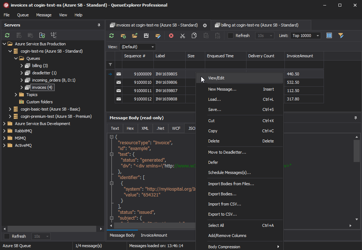
See what is happening in Azure Service Bus and resolve message problems without writing one-off tools. Browse queues and topic subscriptions, inspect message contents, and manage your Azure Service Bus environment from one desktop application. Try it free on Windows, macOS, or Linux.