How to back up and restore MSMQ messages
Updated July 21, 2026
To back up selected MSMQ messages with QueueExplorer for Windows, browse the source
queue, load and select the required messages, then save them to a compressed .mq file. One file can hold
multiple messages and retains bodies, labels, extensions, and other properties needed for a controlled restore.
mqbkup utility is the separate
service-level option for MSMQ message files and registry settings.
1. Decide what the MSMQ backup must protect
| Goal | Suitable method | What it protects |
|---|---|---|
| Restore selected messages | QueueExplorer .mq file |
Message bodies, labels, extensions, and available message properties |
| Analyze payloads with other tools | Export message bodies | Body bytes only, without complete MSMQ metadata |
| Recover the local MSMQ service | Windows mqbkup |
Local MSMQ message files and registry settings as one service-level backup |
| Rebuild application topology and security | Documented configuration and infrastructure recovery | Queue definitions, permissions, certificates, service identity, firewall, DTC, and application configuration |
Define the source Windows computer, queue paths, special locations, selection criteria, and recovery destination before exporting. Peeking does not remove messages, but a live queue changes while producers and consumers work. Establish a maintenance window when the backup must represent a precise boundary.
2. Save restorable messages to an .mq file
- Open the source queue in QueueExplorer and set a practical load limit.
- Wait for the required messages to load. Use Show all only after checking the queue size and available workstation memory.
- Filter and inspect the working set, then select the messages to protect. Use Select All only when the displayed scope is correct.
- Choose Save, click the toolbar Save button, or press Ctrl+S.
- Store the
.mqfile in an access-controlled location and record its computer, queue, date, count, and selection criteria.
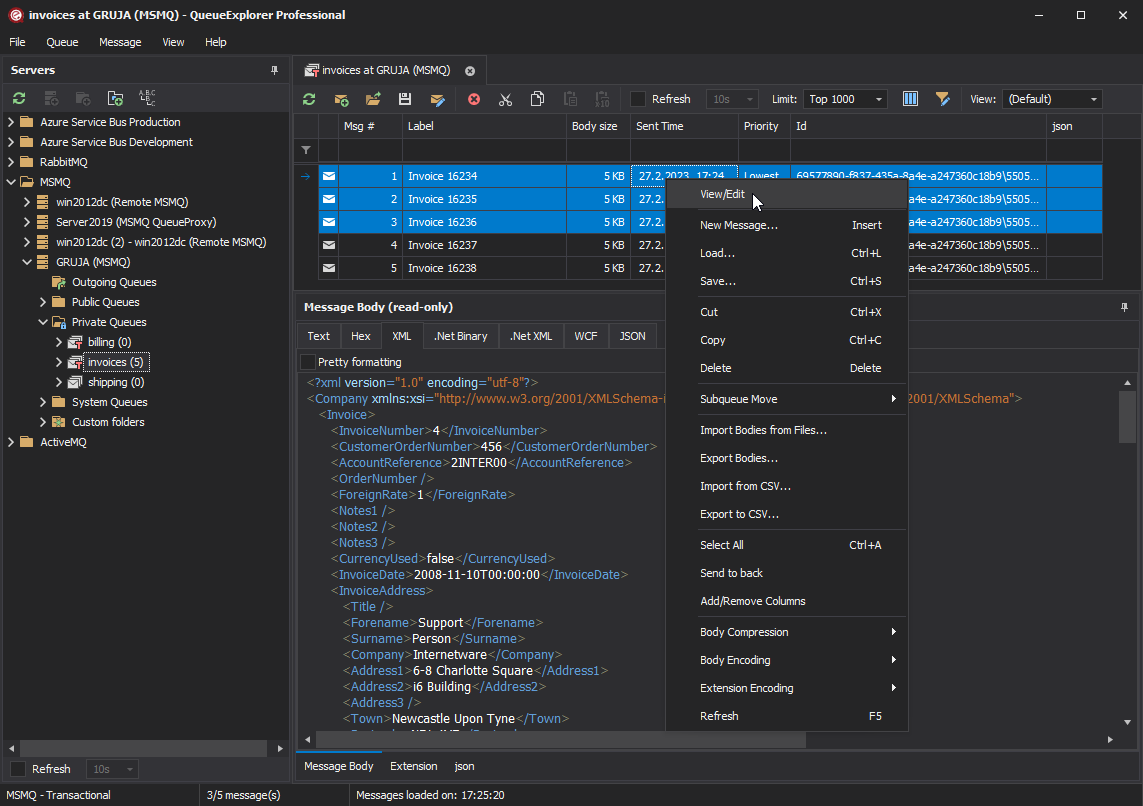
For a large backlog, create documented batches instead of relying on one enormous in-memory selection. Segment by Label, application property, timestamp range, queue, or incident. Keep a manifest with file hashes, counts, source locations, and creation times when the export is part of an audited recovery process.
Export bodies only when full message restoration is unnecessary
Choose Export Bodies to write each message body to a separate file for editing, diffing, malware inspection, or analysis by another tool. QueueExplorer can generate unique filenames when several bodies are exported.
3. Restore into a controlled application queue
- Create or choose a test or quarantine queue whose consumers are stopped.
- Confirm whether the queue is transactional or nontransactional.
- Open it in QueueExplorer and choose Load messages or press Ctrl+L.
- Select the
.mqfile and wait for every intended message to be sent. - Compare counts, representative bodies, labels, extensions, and important application properties with the manifest.
- Load into the production queue only after the isolated test succeeds, then resume consumers gradually.
Restoring is a send operation, not a rewind of the queue. MSMQ assigns new system-managed values such as sender and sent or arrived times, and restored messages join the destination according to MSMQ priority and transaction ordering. Loading a file twice can create duplicates.
A direct connection cannot determine a remote queue's transactional status. QueueExplorer asks you to declare it before the first send; verify the setting carefully. QueueProxy can determine that information locally on the destination computer.
Include journals, subqueues, outgoing queues, and dead letters deliberately
- Queue journal: contains copies of messages removed from its parent when target journaling was enabled.
- Computer journal: contains copies requested through positive source journaling.
- Subqueue: shares its parent queue's properties and quota. Restore to an application queue first; messages cannot be sent directly into a subqueue.
- Outgoing queue: represents messages waiting for transport. Preserve diagnostic properties and fix the transport cause before sending another copy.
- Dead-letter queue: preserve Class, original destination, time limits, and application identifiers. Transactional and nontransactional dead letters are stored separately.
Journal and dead-letter messages consume the MSMQ computer quota. Include them when they are part of the recovery requirement, then apply a documented retention and cleanup policy.
Validate the backup before an incident
- Open the file with the QueueExplorer version used by the recovery procedure.
- Restore a sample to an isolated queue with the correct transactional type.
- Compare counts, bodies, labels, extensions, correlation IDs, and application fields.
- Confirm that the test consumer can deserialize and process the restored data.
- Verify file hashes after copying backups between storage systems.
- Document ownership, access, retention, and secure deletion.
MSMQ messages can contain credentials, tokens, personal data, or regulated information. Encrypt backup storage, restrict access, and never place message exports in source control.
Use mqbkup for a local MSMQ service-level backup
Windows includes the
mqbkup Message Backup/Restore utility.
It backs up MSMQ message files and registry settings and stops the local MSMQ service during backup or restore. Close
local applications that use MSMQ first and follow Microsoft's operational requirements.
Use a new, dedicated backup folder. If an existing destination is not empty, mqbkup can remove its files
and subfolders after confirmation; the /y option suppresses that confirmation and should not be used casually.
mqbkup is broader than a QueueExplorer export and is suited to recovering the local MSMQ installation as
a unit. It is also more disruptive. Test the restore on an isolated Windows computer and separately document any
application configuration, certificates, permissions, service accounts, networking, DTC, and infrastructure that the
MSMQ utility does not recreate for the complete system.
Frequently asked questions
Does saving MSMQ messages remove them?
No. Saving copies the selected messages to a file. The source remains unchanged unless a consumer or a separate delete or move operation removes messages.
Should I set the queue limit to Show all?
Only after checking the queue size and available memory. For a large backlog, save documented and verified batches.
Can an .mq file restore the exact original MSMQ system fields?
No. The file preserves message content and restorable properties, but loading creates newly sent messages. MSMQ assigns new system-managed fields and a new position in the destination.
Can I restore an .mq file on another MSMQ computer?
Yes. Connect QueueExplorer to the target Windows computer, open a compatible application queue, and load the file. Verify permissions and transactional type before sending.
Related MSMQ guides
- Browse and inspect MSMQ messages
- Move selected MSMQ messages to another queue
- Delete specific messages from an MSMQ queue
QueueExplorer: a better way to inspect and manage MSMQ
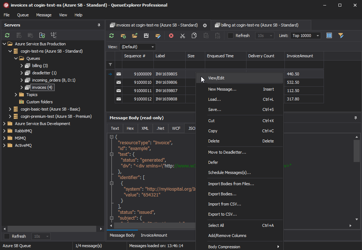
See what is happening in MSMQ and resolve message problems without writing one-off tools. Browse application, journal, subqueue, outgoing, and dead-letter messages; inspect their contents; and manage local or remote MSMQ computers from one Windows desktop application. Try it free on Windows.