How to delete specific messages from an MSMQ queue
Updated July 21, 2026
To delete one or more MSMQ messages, open the queue in QueueExplorer for Windows, identify and select the intended rows, then choose Delete or press the Delete key. Use Purge only when every available message in the queue should be removed.
Before deleting MSMQ messages
- Confirm the Windows computer, environment, and exact private or public queue.
- Determine whether the message is invalid, duplicated, expired in business terms, or blocking a consumer.
- Check whether a producer, retry job, or transaction rollback could recreate it.
- Use an account with Receive permission for the queue; Peek permission alone is not enough to delete.
- Back up the selected messages when recovery may be needed.
If the payload can be repaired, belongs on another queue, or should be isolated for investigation, moving or saving it is usually more useful than deleting it immediately.
1. Browse, filter, and select the messages
- Open the local or remote MSMQ connection in QueueExplorer.
- Select the source queue and load a practical batch.
- Filter by body, Label, Message ID, Correlation ID, AppSpecific, or another property.
- Inspect each candidate's body, extension, and properties, then select only the rows that should be removed.
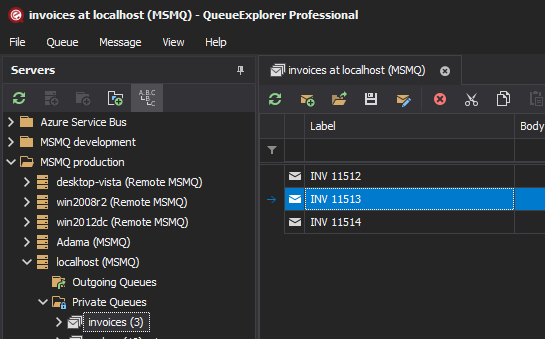
Filtering applies to messages loaded into QueueExplorer; it is not a server-side full-text query across the whole queue. Increase the limit carefully if the target is not in the first batch. QueueExplorer Professional can extract fields from JSON, XML, or text payloads using JSON expressions, XPath, or regular expressions.
2. Delete the selected messages
With the intended rows selected, use the toolbar Delete button, choose Delete from the context menu, or press the Delete key. Review the confirmation before proceeding.
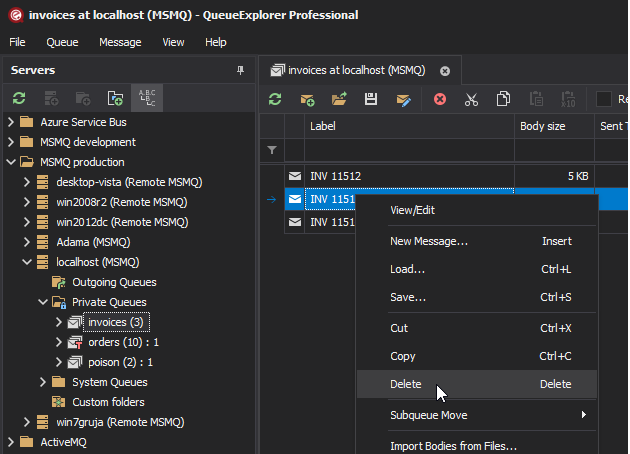
QueueExplorer performs MSMQ message operations through standard Peek, Receive, and Send APIs. The queue can change between browsing and deletion: a consumer might receive the selected message, a higher-priority message might arrive, or another administrator might change the queue. Stop consumers for a controlled cleanup, refresh, and re-check the selection immediately before deleting.
Delete every available message with Purge
Right-click the queue and choose Purge when the goal is to remove all available messages. MSMQ provides a dedicated purge operation, so this is faster and clearer than loading a large backlog and selecting every displayed row.
Do not confuse these operations:
- Delete selected: removes only the selected messages.
- Purge: removes all available messages while keeping the queue definition.
- Delete queue: removes the queue definition and all messages it contains.
Messages already involved in another application's receive or transaction may not be part of the available set. A rollback can return a message later, so verify again after active transactions have settled.
Deleting from journals and dead-letter queues
QueueExplorer can inspect MSMQ queue journals, the computer journal, and transactional or nontransactional dead-letter queues. These are system-managed locations and do not behave exactly like application queues.
Each MSMQ computer has separate transactional and nontransactional dead-letter queues. Before removing a dead-letter message, inspect its Class, original destination, time limits, acknowledgement settings, and payload to determine why delivery failed. If the cause is fixed, consider moving a saved copy to the intended application queue instead.
Journal and dead-letter messages count against MSMQ storage quota. Cleanup should be governed by retention and incident requirements rather than postponed indefinitely.
Understand the journaling side effect
When target journaling is enabled, selected-message operations that receive a message—including delete, cut, move, or send to back—can create a copy in the queue journal. This is expected and can make the total stored-message count appear to grow during maintenance.
A journal copy is not guaranteed to be a complete or convenient rollback mechanism. Purge semantics differ from
ordinary receives, journal queues require their own cleanup, and restored messages are newly sent messages with some
system properties changed. Save a QueueExplorer .mq file when recoverability is required.
Verify the result
- Refresh the source queue and confirm that only the intended messages are gone.
- Check again after consumer transactions settle or are rolled back.
- Inspect the queue journal when journaling is enabled and account for new copies.
- Check outgoing and dead-letter queues if the original problem involved delivery.
- Keep the backup until the application owner confirms the result.
Frequently asked questions
Can I delete one MSMQ message without purging the queue?
Yes. Browse the queue, identify and select the message, then use Delete. Purge is a separate queue-wide operation.
Does Purge delete the MSMQ queue?
No. Purge removes available messages but keeps the queue and its properties. Delete Queue removes the definition.
Why did a deleted message appear again?
A transaction may have rolled back, a producer may have sent another copy, or you may be looking at a journal copy. Compare Message ID, Correlation ID, timestamps, Class, and application identifiers before assuming it is the same stored message.
Related MSMQ guides
- Browse and inspect MSMQ messages
- Move selected MSMQ messages to another queue
- Back up and restore MSMQ messages
QueueExplorer: a better way to inspect and manage MSMQ
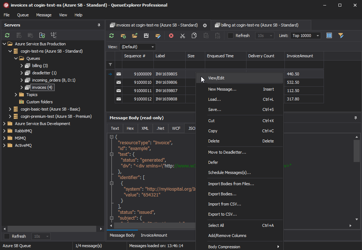
See what is happening in MSMQ and resolve message problems without writing one-off tools. Browse application, journal, subqueue, outgoing, and dead-letter messages; inspect their contents; and manage local or remote MSMQ computers from one Windows desktop application. Try it free on Windows.