How to move selected MSMQ messages to another queue
Updated July 21, 2026
To move selected MSMQ messages, browse the source queue in
QueueExplorer for Windows, inspect and select the required rows, choose Cut,
open the destination queue, and choose Paste. You can also drag the selection onto another queue, or use a
QueueExplorer .mq file for a controlled copy-then-delete workflow.
Before moving MSMQ messages
- Confirm the source and destination Windows computers and exact queue paths.
- Check whether each physical queue is transactional or nontransactional.
- Verify that the target consumer can deserialize the body and understands Label, Correlation ID, AppSpecific, extension, and other application properties.
- Stop or pause consumers if a changing source queue could make selection ambiguous.
- Save the selected messages before a production move.
Moving is appropriate for repair or controlled maintenance. For continuous application routing, design and monitor a producer, forwarding service, or MSMQ-aware workflow instead of relying on manual operations.
1. Find and select the source messages
- Open the MSMQ connection and select the source application, journal, outgoing, dead-letter, or subqueue location.
- Load a practical batch and filter it by body, Label, IDs, AppSpecific, or another property.
- Inspect each candidate and select only the messages intended for the destination.
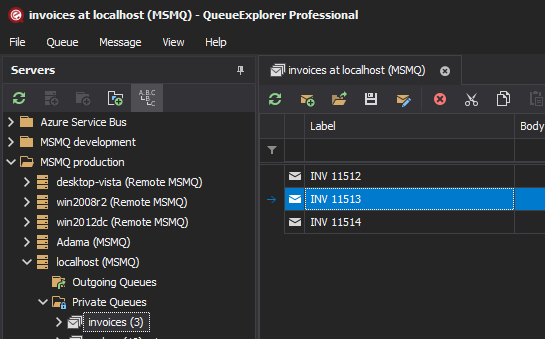
Filters apply to the loaded working set, not to an indexed server-side query. Increase the load limit carefully if the target is not present. QueueExplorer Professional can extract business values from JSON, XML, or text using JSON expressions, XPath, or regular expressions.
2. Move messages between physical queues
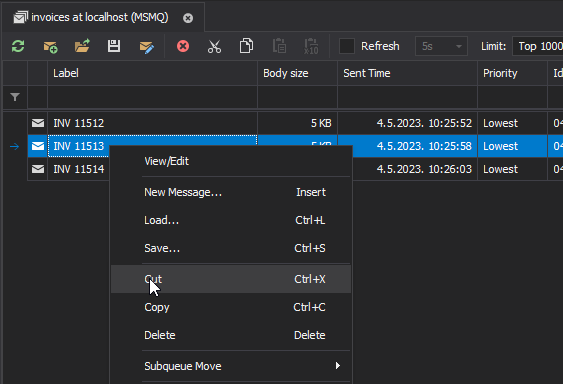
Cut and paste
- Choose Cut from the message context menu or toolbar.
- Open the destination queue.
- Choose Paste and wait for the operation to finish.
Drag and drop
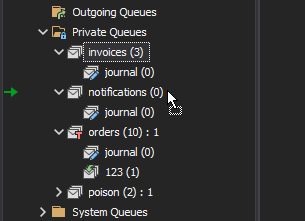
Drag the selected rows onto a visible destination queue. QueueExplorer moves them by default; hold Ctrl when the goal is to copy and retain the source messages. Verify the highlighted destination before releasing the mouse.
Export and import through a file
- Save the selected messages to a QueueExplorer
.mqfile. - Open the target queue on the same or another connected Windows computer and load the file.
- Verify the target count, representative bodies, and important application properties.
- Return to the source and delete the originals only after successful verification.
The file workflow separates copying from deletion and provides a recoverable checkpoint. It is useful across computers or security boundaries, but it is not one atomic transaction across the source and target. A retry or partial failure can leave copies on both sides, so consumers should tolerate duplicates where possible.
Use Subqueue Move for a main queue and its subqueues
MSMQ subqueues are logical partitions of one physical queue. Messages cannot be sent directly to a subqueue. Instead, MSMQ provides a native move operation between the main queue and one of its subqueues, or between sibling subqueues. In QueueExplorer, select the messages and choose Subqueue Move.
This is different from cut and paste between physical queues. A subqueue shares its parent's transactional type, quota, permissions, and other queue properties. The MSMQ move operation can participate in a transaction when the parent queue is transactional.
Use a fault, retry, or work-order subqueue when the application was designed around that structure. Do not create an ad-hoc subqueue without checking whether the consumer knows to read it; an empty subqueue can disappear automatically.
Recover messages from transactional and nontransactional dead-letter queues
MSMQ creates separate transactional and nontransactional dead-letter system queues on each computer. They contain undeliverable messages only when the original sending behavior requested negative source journaling.
- Inspect Message Class, destination, time limits, acknowledgement and journal settings, body, and application identifiers.
- Correct the destination, permissions, quota, network, payload, or receiving application problem.
- Save the intended messages, then load or move them to the correct application queue.
- Watch the outgoing and dead-letter queues so a repeated delivery failure is detected quickly.
Dead-letter queues are computer-wide system locations, so they can contain messages for multiple destinations. Never move the whole dead-letter queue to one application queue merely because the failures occurred on the same computer.
Transactional type, priority, order, and remote queues
- Transactional type: a transactional queue accepts messages sent through an MSMQ transaction; a nontransactional queue accepts nontransactional sends. Confirm the destination type before moving.
- Priority: MSMQ uses priority for nontransactional messages, but sets transactional message priority to Lowest.
- Order: a newly sent destination message does not retain its former physical position. It joins the target according to priority, arrival, and transactional ordering rules.
- Journaling: when target journaling is enabled, removing the source copy during a move can create a journal copy. Account for it in storage and verification.
- Direct remote connection: MSMQ does not expose remote queue transactional status, so QueueExplorer asks you to declare it before sending. QueueProxy can determine the status locally.
For other property changes and direct-remote restrictions, see the QueueExplorer MSMQ limitations.
Verify the transfer
- Refresh the destination and confirm the expected number of messages arrived.
- Compare representative bodies, extensions, labels, correlation IDs, and application properties.
- Refresh the source and confirm that only the intended messages were removed.
- Check the queue journal if target journaling is enabled.
- Resume consumers gradually and monitor processing errors, outgoing queues, and dead-letter queues.
Frequently asked questions
Can I move only some MSMQ messages?
Yes. Browse and filter the loaded messages, select the required rows, then use cut and paste or drag and drop.
Can I move messages between MSMQ computers?
Yes. Direct cut and paste can work when permissions and MSMQ connectivity permit it. An .mq export and
verified import provides a clearer copy-then-delete checkpoint, especially across administrative boundaries.
Can I paste a message directly into an MSMQ subqueue?
No. MSMQ does not support sending directly to a subqueue. Use Subqueue Move between a main queue and its subqueue or between sibling subqueues.
Related MSMQ guides
- Browse and inspect MSMQ messages
- Delete specific messages from an MSMQ queue
- Back up and restore MSMQ messages
QueueExplorer: a better way to inspect and manage MSMQ
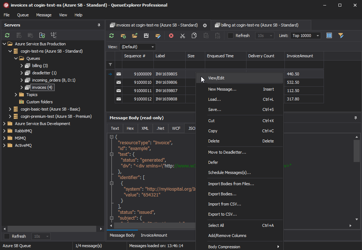
See what is happening in MSMQ and resolve message problems without writing one-off tools. Browse application, journal, subqueue, outgoing, and dead-letter messages; inspect their contents; and manage local or remote MSMQ computers from one Windows desktop application. Try it free on Windows.