How to delete specific Azure Service Bus messages
Updated July 21, 2026
To delete one or more specific Azure Service Bus messages, open the queue, topic subscription, or dead-letter subqueue in QueueExplorer, filter and inspect the messages, select only the unwanted rows, and choose Delete. The entity and its unselected messages remain in place.
Use Purge only when every eligible message in the entity can be discarded. Deleting a selected message, purging message contents, and deleting the queue itself are different operations with very different impact.
.mq backup or
copy them to a quarantine queue first when recovery may be required. Stop publishers and consumers if the exact
selection must remain stable while you review it.
Choose the correct deletion operation
| Operation | What it removes | Best use |
|---|---|---|
| Delete selected | Only reviewed messages selected in QueueExplorer | Poison, duplicate, malformed, test, or obsolete messages |
| Purge | All eligible messages present before the purge cutoff; locked messages remain | Resetting an entity whose entire backlog can be discarded |
| Delete entity | The queue or subscription, its messages, and its configuration | Removing topology that is no longer required |
Do not delete the queue when you only mean to empty it. Recreating an entity incorrectly can change session, partitioning, duplicate detection, forwarding, dead-lettering, TTL, size, and lock settings.
1. Find and verify the messages
- Connect QueueExplorer and select the required queue, subscription, or dead-letter subqueue.
- Load the smallest batch likely to contain the target messages.
- Add identifying fields such as Sequence Number, Message ID, Correlation ID, Subject, Session ID, and application properties.
- Filter the loaded messages by those fields or body content.
- Open every candidate and confirm its body, entity, namespace, and message state.
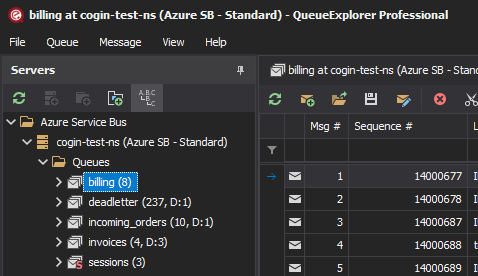
Azure Service Bus does not expose a server-side query such as “delete where Message ID equals this value.” QueueExplorer filters the messages it has loaded and then performs the required receive and settlement work. If the target is deeper than the loaded batch, increase the limit cautiously.
QueueExplorer Professional can extract business values from JSON, XML, or text bodies and expose them as filterable columns. Use more than one identifier when duplicate-looking messages are possible.
Free trial for Windows, macOS, and Linux
2. Delete the selected messages
- Select one message, or use the normal Shift/Ctrl/Cmd controls to select several.
- Choose Delete from the context menu or toolbar, or press the Delete key.
- Review the namespace, entity, state, and selected count in the confirmation.
- Confirm, refresh the entity, and repeat the same filter to verify the result.
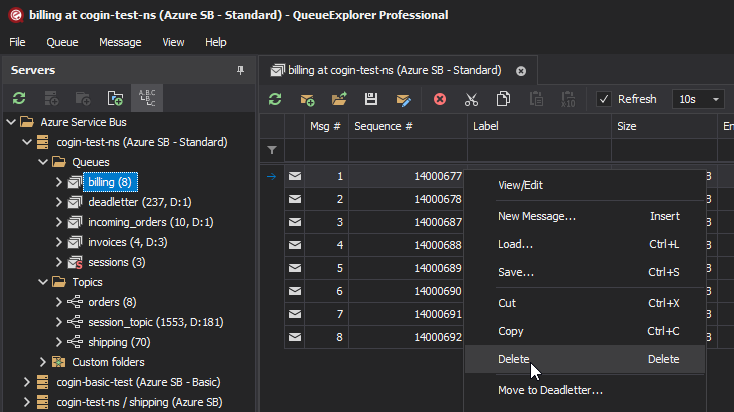
Locating a message in the middle of an active queue may require receiving earlier deliveries and abandoning them. Abandoning increases their Delivery Count. If that count reaches the entity's Max Delivery Count, Azure Service Bus can move those messages to the dead-letter queue. Use a maintenance window and a small load limit when this risk matters.
Delete messages from subscriptions, dead-letter, deferred, and scheduled views
- Topic subscription: deleting a message from one subscription does not remove copies stored in other subscriptions.
- Dead-letter queue: deleting removes the failed copy permanently. Preserve its dead-letter reason, description, body, and properties first if the failure may need diagnosis.
- Deferred: a deferred message remains stored in its main queue or subscription and normally requires its Sequence Number for receive and settlement. QueueExplorer's Deferred view makes it selectable.
- Scheduled: removing a scheduled message before its enqueue time is cancellation. After it becomes active, it has a new Sequence Number and must be handled as an active message.
Purge all messages
QueueExplorer provides Purge from the entity context menu. Azure portal's Service Bus Explorer also offers purge in Receive mode for Azure-hosted namespaces, but it cannot connect to the Azure Service Bus Emulator.
Stop incoming traffic before purging when a clear boundary matters. Locked messages or messages published during the operation can remain, and active, scheduled, deferred, dead-letter, and transfer messages require separate verification. Refresh every relevant state instead of assuming one command cleared the entire entity.
Production deletion checklist
- Verify the target. Check the tenant, namespace, queue or topic, subscription, and subqueue.
- Quiesce traffic. Publishers and consumers can invalidate a displayed selection.
- Back up or quarantine. Keep a full-message copy until downstream processing is healthy.
- Watch Delivery Count. Receive-and-abandon work used to reach a target can dead-letter earlier messages.
- Expect locks. A message held by another receiver might survive a purge or disappear after your list was loaded.
- Inspect every state. Active, dead-letter, deferred, scheduled, and transfer messages are not interchangeable.
- Record the action. Capture who deleted what, from which entity, when, and why.
How to verify deletion
- Refresh the entity and run the same body or property filter again.
- Compare counts, allowing for publishers, consumers, expiry, forwarding, and approximate metric timing.
- Check the dead-letter and transfer dead-letter subqueues for messages moved by another process.
- Keep the backup until the affected consumer processes new traffic successfully.
Frequently asked questions
Can Azure Service Bus delete one message by Message ID?
There is no broker-side delete query by Message ID or body value. QueueExplorer loads a browsable list so you can filter, inspect, and delete a selected message through the appropriate receive and settlement operations.
Does purge delete the queue or subscription?
No. Purge removes eligible message contents while preserving the entity and its configuration. Deleting the entity is a separate control-plane operation.
Does Azure Service Bus purge remove locked messages?
No. The service respects locks held by receivers. Those messages can be completed, abandoned, dead-lettered, or returned after lock expiry, so verify the entity again after active consumers stop.
Can a deleted Azure Service Bus message be recovered?
Azure Service Bus has no per-message undo. Recovery requires a backup, quarantine copy, application archive, or another system of record from which the message can be reconstructed.
Next, see how to back up Azure Service Bus messages or move selected messages to quarantine.
QueueExplorer: a better way to inspect and manage Azure Service Bus
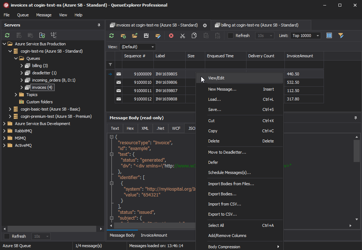
See what is happening in Azure Service Bus and resolve message problems without writing one-off tools. Browse queues and topic subscriptions, inspect message contents, and manage your Azure Service Bus environment from one desktop application. Try it free on Windows, macOS, or Linux.