How to move selected RabbitMQ messages to another queue
Published July 21, 2026
To move selected RabbitMQ messages, open the source queue in QueueExplorer, filter and select the messages, choose Cut, open the target queue, and choose Paste. You can also drag the selection directly onto another queue.
A RabbitMQ move is not an atomic rename like moving a file. QueueExplorer publishes a new message to the target and removes the source message. For important production data, copy a small batch first, verify the target, and delete the originals only after the transfer succeeds.
RabbitMQ streams are different: QueueExplorer can browse a stream page by page and jump to a specific offset or its end, but stream entries are immutable. You can append a new message to a stream, but you cannot remove an existing entry, so this guide's Cut and Move workflow applies to queues only. See the stream browsing example.
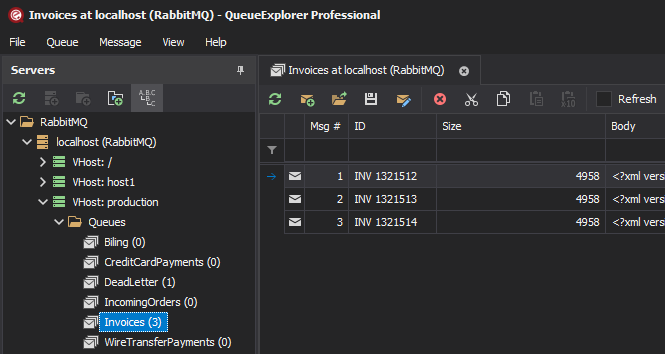
1. Find and select the messages to move
Connect QueueExplorer to RabbitMQ and open the source queue. Messages load progressively, so set a practical limit instead of loading an entire large production queue. Add the body, routing key, message ID, properties, or custom headers you need as columns, then sort or filter the loaded results.
QueueExplorer Professional can extract business values from JSON, XML, or text bodies and display them as columns. This lets you select a precise group such as one customer, order type, or failed batch instead of moving every message in the queue.
Free trial for Windows, macOS, and Linux
Before changing the queue
- Check both destinations. Confirm the source and target queue names, virtual hosts, and connections. Similar queue names on different virtual hosts are easy to confuse.
- Pause or limit consumers. A consumer can remove messages after they are displayed but before the move completes. Pause consumers when a consistent selection or ordering is important.
- Review target policies. TTL, maximum length, dead-lettering, priority, and queue type can make the copied message behave differently in the target queue.
- Verify permissions. The RabbitMQ user must be able to read from the source and publish to the target.
- Back up critical messages. Save them to an
.mqfile before a large or cross-broker transfer.
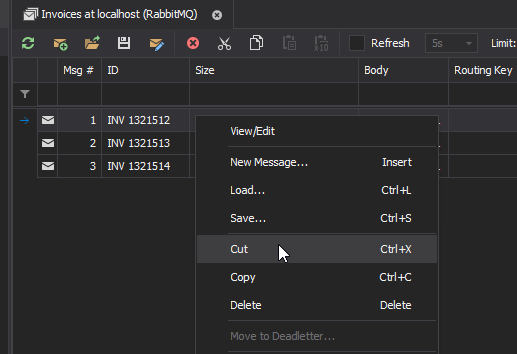
2. Move messages with Cut and Paste
- Select one or more messages in the source queue.
- Choose Cut from the context menu or toolbar. You can also press Ctrl+X on Windows and Linux, or Cmd+X on macOS.
- Open the target queue in the tree, queue list, another tab, or another QueueExplorer window.
- Choose Paste, or press Ctrl+V/Cmd+V.
- Refresh both queues and verify the target messages before resuming consumers.
Use Copy for the first batch
Copy and Paste use the same workflow but leave the source messages in place. This is safer when you are testing a new destination, moving data between brokers, or cannot afford to lose the only recovery copy. After verifying the destination, return to the source queue and delete the originals.
| Operation | Source message | Best use |
|---|---|---|
| Cut and Paste | Removed as part of the move | A tested route and a controlled queue |
| Copy and Paste | Kept until you delete it | First batch, testing, or high-value messages |
| Save and Load | Kept until you delete it | Backup, audit trail, another machine, or disconnected brokers |
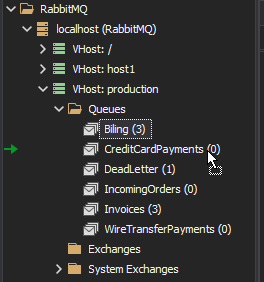
Move messages with drag and drop
Select the messages, press and hold the mouse button, and drag them onto a visible target queue in the tree or queue list. QueueExplorer can switch to a tab while you hover over it, which is useful when the source and target are open in different tabs. Dropping without a modifier moves the messages; holding Ctrl copies them instead.
Move messages by saving and loading a file
A file-based transfer has more steps, but it creates a recoverable checkpoint and works well across machines or RabbitMQ brokers:
- Select the source messages and choose Save or press Ctrl+S/Cmd+S.
- Save them in QueueExplorer's
.mqformat, which can contain multiple messages and their properties. - Open the target queue and choose Load messages.
- Verify the target messages and retain the file until processing succeeds.
- Delete the selected originals from the source queue.
Do not use Export Bodies when the destination needs headers and properties: body export writes only the payload. See how to back up RabbitMQ messages for the difference between full-message and body-only files.
Moving to a queue versus publishing to an exchange
Dropping or pasting onto a queue targets that one queue. This is the predictable choice when you know exactly where the selected messages belong. QueueExplorer can also send messages to an exchange, but then RabbitMQ uses the exchange's current bindings and routing key. One publish may reach several queues, or none if no binding matches.
RabbitMQ still uses an exchange internally when a client appears to publish directly to a queue: the default exchange routes a message by queue name. For an application-style replay through a custom exchange, confirm the routing key and bindings before sending the batch.
What changes when RabbitMQ messages are moved?
QueueExplorer makes the operation feel like moving files, but RabbitMQ does not support changing the queue that owns an existing message. The target receives a newly published message. That has several consequences:
- The messages go to the target queue's tail. Moving them cannot preserve their source queue positions. Priority queues can apply their own ordering.
- Broker-generated data may change. The timestamp, source exchange, routing key, and other delivery metadata can differ from the source.
- Exactly-once movement is not guaranteed. A failure after publishing but before removing the source can leave a duplicate. Consumers should tolerate duplicate business IDs.
- Concurrent consumers can invalidate the selection. Stop consumers while moving important batches so they cannot take or change messages during the operation.
- Duplicate-looking source messages are ambiguous. If the queue changes after it is loaded, QueueExplorer may be unable to identify which identical copy should be removed.
- Displayed counts can lag. RabbitMQ message statistics are updated periodically, so refresh or wait briefly before treating a stale count as a failed transfer.
Moving from a quorum queue also reads the selected messages. If that queue has a delivery limit, repeated
browsing can increase x-delivery-count and eventually dead-letter a poison message. Load and
refresh only as often as necessary.
How to verify a move
- Compare the selected count with the number added to the target.
- Open representative target messages and compare their bodies, headers, and important properties.
- Check that the target's TTL, dead-letter, maximum-length, and consumer behavior are appropriate.
- Run one message through the target consumer before moving the remaining batch.
- After success, confirm that the source copies are gone and watch both queues for unexpected dead letters.
How to move messages in application code
RabbitMQ has no atomic cross-queue move command. A recovery application should combine manual consumer acknowledgements with reliable publishing:
consume one source message with manual acknowledgement
validate the destination and message
publish a new message to the target
wait for publisher confirmation and handle unroutable returns
if confirmed: acknowledge the source delivery
if not confirmed: negatively acknowledge and requeue the source delivery
Publisher confirms tell the application when RabbitMQ has accepted responsibility for a publish. The
mandatory flag and returned-message handling detect a publish that reaches no queue. A connection
failure at the wrong moment can still create a duplicate, so make consumers idempotent and preserve a stable
message or business ID. See RabbitMQ's guides to
publisher confirms and
data safety.
Moving dead-letter messages
Do not move a failed message back simply because its original queue is known. Inspect its
x-death history, fix the rejection, expiration, delivery-limit, or routing problem, and replay one
test message first. Follow the dedicated guide to
replaying RabbitMQ dead-letter
messages for retry limits and loop prevention.
Frequently asked questions
Can the RabbitMQ management UI move selected messages?
The management UI can fetch messages and purge a queue, but it does not provide a file-style interface for filtering and moving an arbitrary selection between queues. QueueExplorer provides Cut, Copy, Paste, and drag-and-drop operations for selected messages.
Can I preserve the original position in the target queue?
No. A moved message is newly published and joins the target according to its queue type and priority. It cannot be inserted at the same numerical position it occupied in the source queue.
Can I move messages while consumers are running?
You can, but the selection is not stable: consumers may receive messages while QueueExplorer is working. Pause consumers for high-value batches, when order matters, or when source messages look identical.
Can I move messages between RabbitMQ brokers?
Yes. With both connections open, you can transfer to a visible queue in another QueueExplorer window. For a
more recoverable cross-broker or cross-machine workflow, save the messages to an .mq file, load
them into the target, verify them, and only then delete the source copies.
Can I move an individual message out of a RabbitMQ stream?
Not as a true move. RabbitMQ streams are append-only, so QueueExplorer cannot remove the source entry. It can browse stream history by offset and append new messages to a stream.
For related message-level operations, see the RabbitMQ GUI guide and how to delete selected RabbitMQ messages.
QueueExplorer: a better way to inspect and manage RabbitMQ
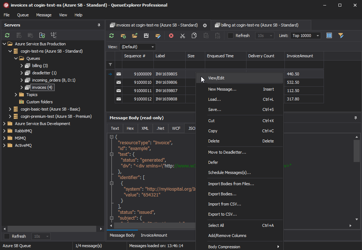
See what is happening in RabbitMQ and resolve message problems without writing one-off tools. Browse queues and streams, inspect message contents, and manage your RabbitMQ environment from one desktop application. Try it free on Windows, macOS, or Linux.