How to delete specific messages from a RabbitMQ queue
Published July 21, 2026
To delete one or more specific RabbitMQ messages, open the queue in QueueExplorer, find and select the unwanted messages, and choose Delete. Only the selected queue messages are removed; the queue and its remaining messages stay in place. To remove every ready message instead, use Purge on the queue.
RabbitMQ itself does not provide a command that deletes an arbitrary queued message by message ID. Queues deliver messages from the front, so a message tool must receive messages in front of the target while locating it. QueueExplorer handles that process and provides a selectable message list.
This guide applies to queues, not streams. RabbitMQ streams are immutable append-only logs. QueueExplorer can browse a stream page by page, jump to an offset or the end, and append new entries, but it cannot delete individual existing stream entries.
Ways to remove RabbitMQ messages
| Operation | What it removes | When to use it |
|---|---|---|
| Delete selected messages | Only the messages selected in QueueExplorer | Removing poison, malformed, duplicate, or test messages |
| Purge queue contents | All messages currently in the Ready state | Resetting a test queue or discarding an entire backlog |
| Delete the queue | The queue, all messages it contains, and its bindings | Removing topology that is no longer needed |
| Reject or negatively acknowledge | The delivery is requeued, dead-lettered, or discarded according to the settlement and configuration | Application error handling rather than manual queue cleanup |
Do not delete a whole queue when you only mean to empty it. Deleting the queue also removes its bindings, and recreating it incorrectly can change durability, queue type, arguments, policies, and message routing.
1. Find the messages you want to delete
Connect QueueExplorer to RabbitMQ and select the queue. Messages load progressively, so choose the smallest useful loading limit instead of reading an entire large production queue. Add message body, ID, routing key, properties, or custom headers as columns, then sort or filter the loaded results.
QueueExplorer Professional can extract business fields from JSON, XML, or text bodies with JSON expressions, XPath, or regular expressions. These values become columns that can be filtered, making it easier to isolate messages for one order, customer, event type, or failed batch.
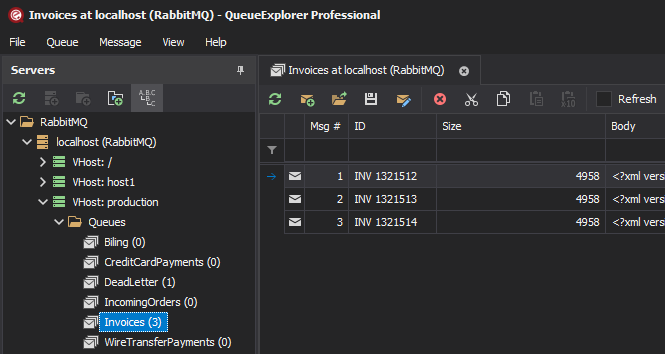
Check the selection before deleting
- Confirm the connection, virtual host, and queue name. Similar names across development and production are easy to confuse.
- Inspect the body and headers. A message ID alone may not be unique or may be absent.
- Pause competing consumers when possible. They can remove messages after the list is loaded and make the displayed selection stale.
- Save important messages first. Use QueueExplorer's full-message
.mqformat when you may need the bodies, properties, and headers again.
Free trial for Windows, macOS, and Linux
2. Delete the selected RabbitMQ messages
- Select one message, or use the standard Shift/Ctrl/Cmd selection controls to select several.
- Right-click the selection and choose Delete. You can also use the toolbar command or press the Delete key.
- Review the confirmation carefully, especially the selected count and queue.
- Confirm the deletion, refresh the queue, and verify that the intended messages are gone.
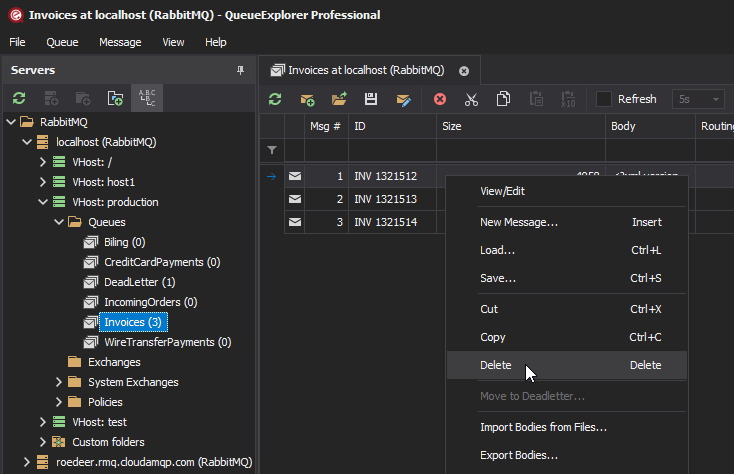
Deletion is permanent from RabbitMQ's point of view. If a message may be useful for diagnosis or replay, save it first or copy it to a quarantine queue. Moving questionable messages is often safer than immediately deleting them.
How to purge all messages from a RabbitMQ queue
When every pending message can be discarded, right-click the queue in QueueExplorer and choose Purge. Purging is much faster and clearer than selecting a large backlog manually, but it cannot be undone.
A purge removes messages that are Ready at the time RabbitMQ processes the request. It does not remove messages already delivered to consumers and shown as Unacknowledged. Those messages may reappear if a consumer returns them or its channel closes, so a queue can show messages again after a successful purge.
Before purging a live queue, stop its publishers and consumers, check both Ready and Unacknowledged counts, and back up messages when recovery might be required. Purge the queue only after confirming that new messages cannot arrive during the operation.
RabbitMQ Management UI, HTTP API, and CLI options
The RabbitMQ Management UI can purge an entire queue, but it does not provide a grid for finding and deleting an arbitrary message by ID or body value. Open the queue page and use Purge Messages when all ready messages can be removed.
For automation, the RabbitMQ HTTP API exposes
DELETE /api/queues/{vhost}/{name}/contents. For example, with the default virtual host encoded as
%2F:
curl -u username:password -X DELETE \
  http://rabbitmq-host:15672/api/queues/%2F/orders/contents
The current rabbitmqadmin command-line equivalent is:
rabbitmqadmin --vhost "/" queues purge --name "orders"Both commands purge all Ready messages; neither selects one message. Avoid placing real credentials directly in shell history, and verify the encoded virtual host and queue name before running either command.
Why RabbitMQ cannot delete a message by ID directly
A RabbitMQ queue is not a database table with a searchable primary key. Message IDs and application headers are payload metadata, not broker indexes. A consumer receives available messages in delivery order and decides how to settle each delivery.
In application code, positively acknowledging a delivery removes it. Rejecting or negatively acknowledging it with requeue disabled can dead-letter it when a dead-letter exchange is configured, so that is not necessarily the same as permanent deletion. Requeueing the non-target deliveries can also affect redelivery flags and the order observed by competing consumers. See RabbitMQ's guides to consumer acknowledgements and message ordering.
Production safety and limitations
- A displayed list is not a transaction. Publishers and consumers can change the queue while you review it. Pause them when the exact selection matters.
- Counts can lag. RabbitMQ management statistics are sampled periodically. Refresh and inspect the message list before assuming a deletion failed.
- Unacknowledged messages require separate attention. A purge does not remove them. Find the owning consumer or channel before deciding how they should be settled.
- Duplicate-looking messages are ambiguous. Use stable business identifiers and inspect the body and headers before deleting a copy.
- Browsing is observable. Queue inspection temporarily receives and returns deliveries. If strict ordering or quorum-queue delivery behavior matters, use a maintenance window and load only a small batch.
- Streams cannot be edited message by message. Old stream data is removed by configured age or size retention at the segment level, not by selecting an individual entry.
For acknowledgement behavior and exclusive access options, read how to inspect RabbitMQ message contents without losing them.
How to verify the deletion
- Refresh the queue and search again using the same IDs, headers, or body filter.
- Compare the selected count with the change in Ready messages, allowing for concurrent publishing or consuming.
- Check the dead-letter queue if the operation or application workflow may have rejected messages rather than positively acknowledged them.
- Keep any backup or quarantine copies until the affected consumers run successfully.
Frequently asked questions
Can RabbitMQ delete one message by message ID?
RabbitMQ has no broker command that searches a queue and deletes an arbitrary message by ID. QueueExplorer loads messages into a selectable list so you can filter, inspect, and delete the required selection.
Does purging a RabbitMQ queue delete the queue?
No. Purging removes the queue's Ready messages while keeping the queue and its bindings. Deleting the queue is a separate and more destructive topology operation.
Does purge remove Unacknowledged RabbitMQ messages?
No. Those messages are already held by consumers. They can be acknowledged, rejected, or returned when their channel closes, and may therefore appear in the queue after it was purged.
Can a deleted RabbitMQ message be recovered?
RabbitMQ does not provide an undo operation. Recovery requires a saved copy, another queue or stream containing the event, or the original producer data from which the message can be published again.
Can I delete an individual RabbitMQ stream message?
No. Streams use immutable, append-only storage. QueueExplorer can browse them by offset and append messages, but RabbitMQ removes old entries through age or size retention applied to stream segments.
For other message-level operations, see the practical guides to browsing RabbitMQ queues and streams and moving selected RabbitMQ messages.
QueueExplorer: a better way to inspect and manage RabbitMQ
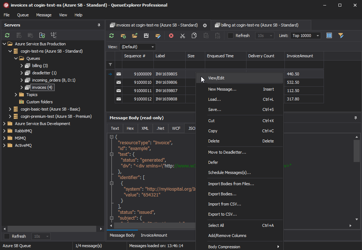
See what is happening in RabbitMQ and resolve message problems without writing one-off tools. Browse queues and streams, inspect message contents, and manage your RabbitMQ environment from one desktop application. Try it free on Windows, macOS, or Linux.