How to browse RabbitMQ queues and streams with QueueExplorer
Published July 21, 2026
To browse RabbitMQ messages, connect QueueExplorer to the broker and select a queue or stream. Queue messages load progressively from the front of the queue. Stream messages load page by page from the beginning, end, or an offset you choose.
Select a message to view its body, properties, routing information, and custom headers. You can then choose columns, sort the current list, and filter the messages QueueExplorer has loaded.
1. Connect QueueExplorer to RabbitMQ
- Download QueueExplorer and install it on Windows, macOS, or Linux.
- Create a RabbitMQ connection using the broker host, port, virtual host, username, and password.
- Open the connection to display its virtual hosts, queues, streams, exchanges, and other objects.
- Expand the required virtual host and select the queue or stream you want to browse.
QueueExplorer can keep multiple broker connections open, which is useful when comparing development, staging, and production or investigating a message flow across environments.
2. Browse messages in a RabbitMQ queue
Select a queue in the object tree. QueueExplorer begins loading messages progressively, so the first results appear without waiting for the entire requested set. Use the toolbar limit to load only the number you need, such as the first 10 or 100 messages, or choose all messages when the queue size and operating conditions make that safe.
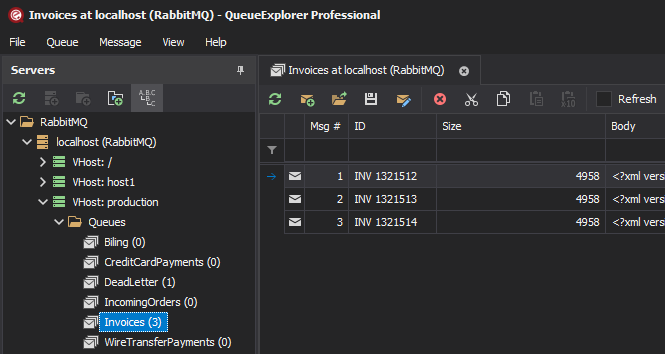
RabbitMQ queues do not support jumping directly to an arbitrary middle position. To reach a later queued message, a browser must read the deliveries in front of it. QueueExplorer manages that process and returns browsed messages instead of positively acknowledging them as processed.
Queue browsing still interacts with RabbitMQ's acknowledgement model. For the protocol behavior, exclusive access options, and production precautions, read how to inspect RabbitMQ queue messages without losing them.
Free trial for Windows, macOS, and Linux
3. Browse RabbitMQ streams by offset
Select a stream to open its offset toolbar and first page of messages. Enter an exact offset to start there, use the navigation buttons to move one page forward or backward, or jump to the beginning or end of the stream. This makes it practical to investigate a known offset without reading all earlier messages.
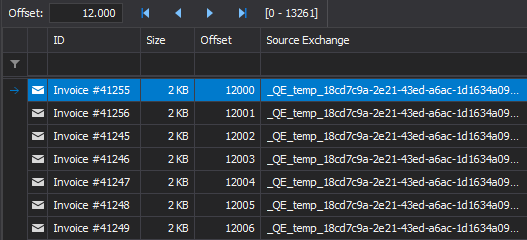
RabbitMQ streams are immutable, append-only logs. Browsing does not remove an entry, and the same history can be read again. QueueExplorer can append new messages to a stream, but it cannot change, move, or remove existing entries individually. RabbitMQ discards old stream segments according to configured age or size retention limits.
4. View message bodies, properties, and headers
Click a message to preview its body and delivery metadata. Choose the viewer that matches the payload:
- JSON with readable formatting;
- XML;
- text using UTF-8, UTF-16, ASCII, and other encodings;
- hexadecimal data for binary or unknown formats;
- WCF message content; or
- decompressed Gzip or Deflate content.
Add standard properties and custom headers to the message grid as columns. Useful fields include message ID, content type, timestamp, routing key, source exchange, priority, expiration, redelivery state, and application headers. Streams also expose each message's offset.
5. Sort and filter the loaded message list
Click a column heading to sort the current view, or add filters for message bodies, properties, headers, and other visible values. Filtering is applied to the messages QueueExplorer has loaded; RabbitMQ does not provide a server-side full-text search across every message in a queue.
QueueExplorer Professional can extract business fields from JSON, XML, or text bodies using JSON expressions, XPath, or regular expressions. The extracted values become columns that can be sorted and filtered, helping you find messages by values such as order number, customer, event type, or invoice total.
Sorting changes only the displayed order. It does not reorder the messages in a RabbitMQ queue or change stream offsets.
Browsing queues versus streams
| Behavior | RabbitMQ queue | RabbitMQ stream |
|---|---|---|
| Starting point | Front of the queue | Beginning, end, or a selected offset |
| Navigation | Load messages progressively from the front | Browse forward or backward page by page |
| Effect of reading | Deliveries are temporarily unacknowledged and must be returned | Existing log entries remain available for repeated reads |
| Writing | Publish a new message to the queue's tail | Append a new entry to the stream |
| Changing existing messages | Selected messages can be deleted or replaced with edited copies | Individual entries cannot be edited, moved, or deleted |
| Removal | Consumption, acknowledgement, deletion, purge, or expiration | Age or size retention removes old stream segments |
A safer browsing workflow
- Use a development or staging broker when possible.
- For a production queue, load only the smallest useful number of messages.
- Pause competing consumers when you need a consistent queue selection or message order.
- Choose exclusive queue access only when temporarily blocking consumers is acceptable.
- Avoid repeatedly refreshing a quorum queue with a delivery limit because browsing can increase delivery counts.
- For a stream, start near the relevant offset or at the end instead of reading unnecessary history.
- Do not choose Delete, Cut, Move, or destructive editing actions during a read-only queue investigation.
Common tasks after finding a message
- Move selected queue messages to another queue.
- Delete selected queue messages.
- Save queue messages to a backup file.
- Replay dead-lettered queue messages.
These selected-message operations apply to queues. A stream accepts new appended messages but does not allow an existing entry to be removed or rewritten.
Frequently asked questions
Can I browse RabbitMQ messages without consuming them?
A queue browser must receive queue deliveries temporarily, but QueueExplorer returns them rather than positively acknowledging them as processed. Stream entries remain in the append-only log when read. See the queue inspection safety guide for acknowledgement details.
Can QueueExplorer search every message in a RabbitMQ queue?
QueueExplorer can filter the messages it has loaded. RabbitMQ does not provide a broker-side full-text search across an entire queue, so the loading limit must include the messages you want to search.
Can I jump directly to a message in the middle of a queue?
No. A queue must be read from the front. With a stream, QueueExplorer can jump to an exact offset and browse from there.
Can I delete a message from a RabbitMQ stream?
No. Individual stream entries are immutable. RabbitMQ removes old stream segments according to retention, or the entire stream can be deleted as a separate operation.
For a broader feature overview, see RabbitMQ GUI for viewing, searching and editing messages.
QueueExplorer: a better way to inspect and manage RabbitMQ
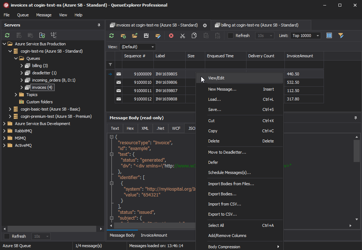
See what is happening in RabbitMQ and resolve message problems without writing one-off tools. Browse queues and streams, inspect message contents, and manage your RabbitMQ environment from one desktop application. Try it free on Windows, macOS, or Linux.