How to back up and restore RabbitMQ messages
Updated July 21, 2026
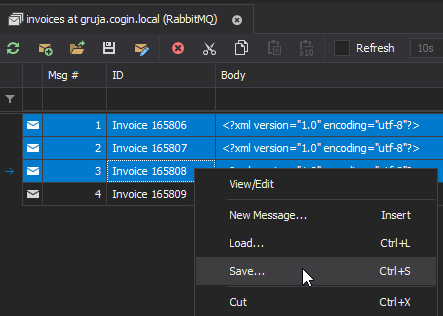
To back up RabbitMQ queue messages with QueueExplorer, open the queue, load and
select the required messages, then choose Save. QueueExplorer stores the selection in one compressed
.mq file with the message bodies, properties, and headers needed for a later QueueExplorer restore.
Saving the selection does not remove the source messages.
For a complete queue export, first pause publishers and consumers and confirm that the Unacknowledged count is zero. Then load all Ready messages, select all, and save them. Without that maintenance window, the queue can change during the export and the file is only a best-effort selection, not an atomic point-in-time snapshot.
.mq file protects
selected messages. A RabbitMQ definitions export protects virtual hosts, queues, exchanges, bindings, policies,
users, and permissions, but contains no queued messages. A useful recovery plan often needs both.
RabbitMQ streams are different. QueueExplorer can browse a stream page by page, jump to an offset or its end, and append messages. Stream entries are immutable and retained according to age or size settings. Replaying a saved entry appends a new entry; it cannot restore the original offset or replace an existing entry.
Choose the RabbitMQ backup you actually need
| Backup method | What it contains | Best use |
|---|---|---|
QueueExplorer .mq file |
Selected message bodies, properties, and headers | Manual recovery, test data, quarantine, or selected-message transfer |
| Export Bodies | Raw body of each selected message in a separate file | External inspection, source control samples, or payload processing |
| RabbitMQ definitions JSON | Broker topology, policies, users, permissions, and parameters | Recreating schema; it does not contain messages |
| Stopped-node data-directory copy | Node definitions and message-store data | Specialized broker disaster recovery under strict restore constraints |
Replication is also not a backup by itself. Quorum queues and streams protect against a minority of node failures, but an application error, purge, expiration policy, or operator action can affect the replicated data. Keep independent recovery copies for the failures your recovery plan must cover.
1. Prepare the RabbitMQ queue
For a few selected messages, you can work with a bounded live view. For a complete, repeatable queue backup, use a maintenance window:
- Confirm the RabbitMQ connection, virtual host, and queue name.
- Record the Ready and Unacknowledged counts.
- Pause publishers so new messages cannot arrive during the backup.
- Pause consumers and wait for in-flight messages to be acknowledged or returned until Unacknowledged is zero.
- Use exclusive browsing when blocking other consumers is acceptable and you need a stable selection.
- Choose a loading limit appropriate for the queue size and available client and broker resources.
RabbitMQ queues do not provide a database-style snapshot or a way to jump directly to an arbitrary position. QueueExplorer must receive messages from the front and return browsed deliveries to RabbitMQ. Active consumers, publishers, TTL, queue-length policies, or dead-lettering can therefore change the queue while it is being saved.
For acknowledgement behavior and production precautions, read how to inspect RabbitMQ message contents without losing them.
2. Save RabbitMQ messages to an .mq file
- Open the queue in QueueExplorer.
- Load enough messages to include everything you intend to back up. Top 100, for example, can back up only messages included in that loaded set.
- Filter or sort the list if you need a particular subset.
- Select the required messages. Use Ctrl+A on Windows or Linux, or Cmd+A on macOS, to select all loaded messages.
- Choose Save from the context menu or toolbar, or press Ctrl+S/Cmd+S.
- Store the resulting
.mqfile in a protected location outside the RabbitMQ server.
Free trial for Windows, macOS, and Linux
Back up a large queue in batches
Loading millions of messages into a desktop list can hold many deliveries unacknowledged, consume substantial memory, and disturb a production workload. Prefer a controlled drain or continuous archive design for very large backlogs. If a manual file backup is still appropriate, stop message flow and save bounded, clearly numbered batches. Record the expected count for each file and do not resume applications until coverage is verified.
3. Verify the message backup
- Confirm the backup file exists, is non-empty, and is readable from its recovery location.
- Record the source broker, virtual host, queue, message count, backup time, QueueExplorer version, and operator.
- Create a checksum so later corruption or accidental replacement can be detected.
- Test-load the file into an isolated queue and compare representative bodies, properties, and headers.
- Run a test consumer when the backup is intended for operational recovery, not just inspection.
A file that has never been restored is an untested backup. Keep the original queue unchanged until the test restore is complete whenever the maintenance procedure allows it.
How to restore RabbitMQ messages from an .mq file
- Create or select the destination queue. Verify its virtual host, type, arguments, policies, bindings, and dead-letter configuration.
- Pause destination consumers if you need to inspect the restored messages before processing.
- Open the destination queue in QueueExplorer and choose Load.
- Select the saved
.mqfile and load its messages. - Compare the restored count and representative content with the backup record.
- Release one message to a test consumer before restoring further batches or resuming full processing.
The destination can be another queue, virtual host, or RabbitMQ broker. A restore republishes messages; it does not put the original broker records back in place. Restored messages join the destination according to its queue type and priority rather than returning to their original numerical positions.
Destination policies can change the result. Queue or message TTL, maximum length, overflow, dead-lettering, priority, and delivery limits may differ from the source. Broker-generated delivery state and timing can also be different even when the saved application properties and headers are retained.
When to export message bodies instead
Choose Export Bodies when another program needs the raw payloads. QueueExplorer writes each selected body to a separate file exactly as stored, which is convenient for text editors, JSON/XML tools, test fixtures, or custom processing.
Body-only files do not retain message IDs, content type, correlation ID, timestamp, routing information, custom
headers, expiration, priority, or other properties. Importing those files creates messages with newly supplied or
default properties. Use the .mq format instead when a useful restore depends on metadata.
Back up RabbitMQ definitions too
A destination queue cannot be restored correctly if its topology is missing. RabbitMQ recommends exporting definitions to JSON for schema backup:
rabbitmqctl export_definitions /secure/path/rabbitmq-definitions.jsonThe file can include virtual hosts, queues, exchanges, bindings, policies, users, permissions, and runtime parameters. It can also contain password hashes, so treat it as sensitive data. Definition export does not contain messages, TLS certificates, enabled plugin binaries, operating-system configuration, or monitoring history.
See the detailed guide to backing up and migrating RabbitMQ schema and RabbitMQ's official definitions documentation.
What about backing up the RabbitMQ data directory?
RabbitMQ's node data directory contains both definitions and the message stores for classic queues, quorum queues, and streams hosted on that node. Copying it is a specialized node-recovery procedure, not a portable message export.
RabbitMQ strongly discourages copying message data from a running node because the result can be inconsistent. The node must be stopped; replicated queues require coordinated cluster handling; definitions must exist before message data can be restored; and modern restores require the original node name. Nodes containing quorum queues or streams cannot be renamed during this restore.
Follow the version-specific official RabbitMQ backup and restore guide and test the complete procedure on matching infrastructure. For most application-level recovery, definitions plus independent message copies or a standby strategy are easier to validate than raw node files.
Design continuous recovery instead of repeatedly exporting a live queue
A manual QueueExplorer backup is useful for selected messages, maintenance work, and test data. It is not a replacement for a continuous recovery architecture. When every business event must be recoverable, consider:
- publishing a copy to a dedicated audit or archive queue at routing time;
- using a RabbitMQ stream when repeatable reads and retained history fit the application;
- persisting the authoritative event or command in an application database or object store;
- using quorum queues and publisher confirms for local data safety; and
- maintaining and regularly testing a separate disaster-recovery environment.
These choices have different recovery points, ordering behavior, and failure modes. Replication improves availability, while an independent backup or archive provides recovery from deletion, corruption, or application error.
Backup limitations and security
- Queue exports are not atomic. Stop message flow when the backup must represent one stable point.
- Unacknowledged messages are not Ready. Wait for consumers to settle or return them before a complete queue export.
- TTL and policies continue to act. Messages can expire or be dead-lettered while you prepare the backup, and destination policies apply after restoration.
- Restore is republishing. Queue position, delivery state, and broker-generated details are not a point-in-time restoration.
- Compression is not encryption. Message files can contain credentials, personal information, payment data, or proprietary payloads. Encrypt storage and transfers and restrict access.
- Retention needs an owner. Define expiration, secure deletion, audit, and legal-hold rules for backup files.
Frequently asked questions
Does exporting RabbitMQ definitions back up messages?
No. Definitions recreate topology and security metadata. Queue and stream messages require a separate message or broker-data backup plan.
Can I back up RabbitMQ messages without removing them?
Yes. Saving selected messages in QueueExplorer does not delete them. Queue browsing still receives and returns deliveries, so pause consumers and publishers when you need a stable, complete selection.
Can I restore messages to another RabbitMQ server?
Yes. Connect QueueExplorer to the destination, create or select a compatible queue, and load the
.mq file. Verify destination policies and test a small batch before restoring everything.
Does the RabbitMQ Management UI provide a message backup?
The Management UI can fetch a small number of messages and export definitions, but it does not provide a complete selected-message backup and restore workflow. QueueExplorer can save multiple selected messages with their properties and headers in one file.
Can I back up a live RabbitMQ queue?
You can save messages from a live queue, but concurrent publishing, consumption, expiration, and requeueing mean the result is not an atomic snapshot. Stop message flow when completeness and consistency are required.
Can QueueExplorer restore a RabbitMQ stream at the same offsets?
No. Existing stream entries and offsets are immutable. Loading messages into a stream appends new entries with new offsets; retention and broker-level disaster recovery require a separate plan.
For related operations, see how to browse RabbitMQ queues and streams, move selected messages, or delete selected messages.
QueueExplorer: a better way to inspect and manage RabbitMQ
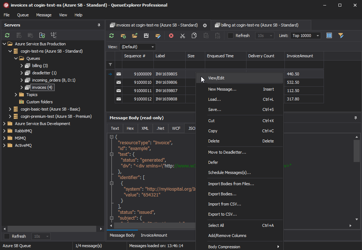
See what is happening in RabbitMQ and resolve message problems without writing one-off tools. Browse queues and streams, inspect message contents, and manage your RabbitMQ environment from one desktop application. Try it free on Windows, macOS, or Linux.